PowerPoint presentations are a staple of business, education, and public speaking, and their effectiveness hinges on their visual appeal, organization, and functionality. Visual Basic for Applications (VBA) provides an avenue to elevate PowerPoint presentations by automating tasks, adding interactivity, and creating unique features. Alongside VBA, Microsoft PowerPoint’s design tools enable the creation of aesthetically pleasing slides that engage and inform audiences. This guide explains how to create impactful PowerPoint presentations using VBA while leveraging design tools to produce visually appealing results.
What is VBA?
Visual Basic for Applications (VBA) is a programming language developed by Microsoft, designed primarily for automating tasks and extending functionality within Microsoft Office applications like Excel, Word, Access, and PowerPoint. Here’s a structured breakdown:
Key Points About VBA:
- Purpose:
- Automation: Streamline repetitive tasks (e.g., formatting data, generating reports).
- Customization: Create user-defined functions, macros, and interactive forms.
- Integration: Control Office apps programmatically (e.g., pulling data from Excel into Word).
- How It Works:
- Event-Driven: Code executes in response to user actions (e.g., clicking a button).
- Object Model: Interacts with applications via objects (e.g.,
Workbookin Excel,Documentin Word). - Macro Recording: Users can record actions as VBA code for later editing/execution.
- Common Use Cases:
- Excel: Automate data analysis, create dashboards, or build complex formulas.
- Word: Generate templated documents (e.g., invoices, mail merges).
- Access: Develop database applications with custom interfaces.
- Pros:
- Accessibility: Built into Office apps; no extra software needed.
- Ease of Use: Simpler syntax compared to languages like C++ or Java.
- Rapid Prototyping: Quickly automate workflows without full-scale development.
- Limitations:
- Platform Dependency: Tied to Microsoft Office (not cross-platform).
- Security Risks: Macros can execute malicious code, leading to disabled-by-default settings.
- Performance: Slower for large-scale data processing compared to Python or C#.
- Example Code (Excel):vbaCopySub HelloWorld() MsgBox “Hello, World!” ‘ Displays a pop-up message Range(“A1”).Value = “VBA Demo” ‘ Writes text to cell A1 End Sub
Who Uses VBA?
- Business Analysts: Automate reports or data cleaning.
- Finance Professionals: Build financial models or budgeting tools.
- Non-Developers: Office users seeking efficiency without learning complex languages.
Alternatives:
- Power Query/Excel Formulas: For simpler data tasks.
- Python (with libraries like pandas): More powerful for data analysis outside Office.
- Office Scripts (Excel Online): JavaScript-based automation for cloud workflows.
How to Generate Presentation Content Using ChatGPT VBA Code
Accessing ChatGPT
- Visit OpenAI’s ChatGPT platform or any integrated tool (e.g., apps, plugins).
- Log in or sign up for an account.
- Choose the version you want (e.g., GPT-4 for detailed responses).
Structuring Responses for Slides
Ask ChatGPT to provide content in a slide-friendly format.
Example Prompt:
“Create content for a PowerPoint presentation using VBA code on ‘Healthy Eating Habits.’ Write the content for 4 slides, each with a title and 3 bullet points.”
VBA Code to Generate Slides
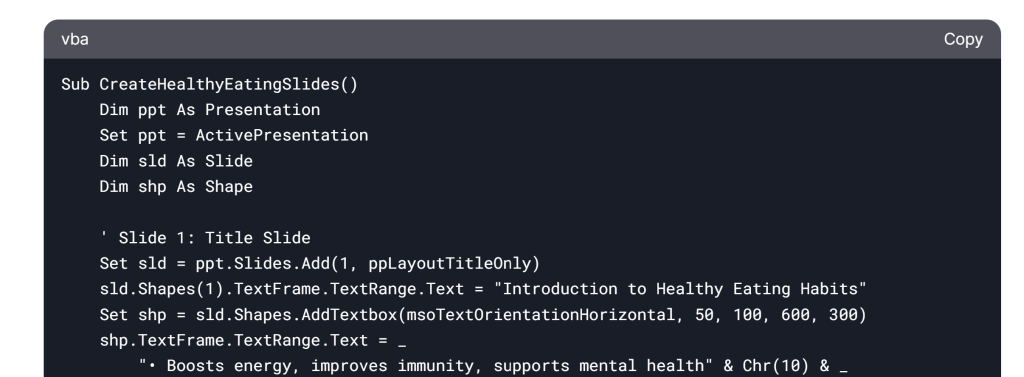
Sample Response:
- Slide 1: Introduction to Healthy Eating
- Importance of a balanced diet.
- Impact on physical and mental health.
- How to start healthy eating habits.
- Slide 2: Benefits of Healthy Eating
- Boosts energy levels.
- Reduces the risk of chronic diseases.
- Improves mood and brain function.
- Slide 3: Key Components of a Healthy Diet
- Fruits and vegetables: Half of your plate.
- Whole grains and lean proteins.
- Limited sugar and saturated fats.
- Slide 4: Tips for Maintaining Healthy Habits
- Plan meals ahead.
- Drink plenty of water.
- Practice mindful eating.
Asking for Refinements
If the response isn’t exactly what you want, provide feedback and ask for revisions.
Example Follow-Up Prompt:
“Can you simplify the content and make it more suitable for primary school students?”
Setting Up VBA in PowerPoint
How to Enable the Developer Tab
Here’s a step-by-step guide to making the Developer tab visible in your PowerPoint ribbon:
- Open PowerPoint: Launch the PowerPoint application.
- Access the “File” Menu: Click on the “File” tab, located in the top-left corner of the PowerPoint window.
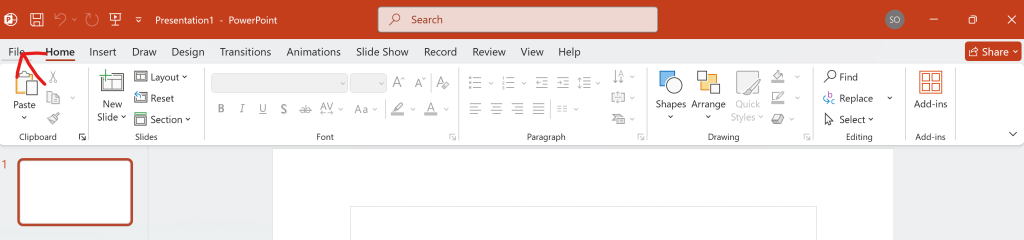
- Navigate to “Options”: From the File menu, select “Options” at the bottom. This will open the PowerPoint Options dialog box.
- Choose “Customize Ribbon”: In the PowerPoint Options dialog box, click on “Customize Ribbon” from the left-hand menu. This will display a panel with options related to tailoring the Ribbon interface.
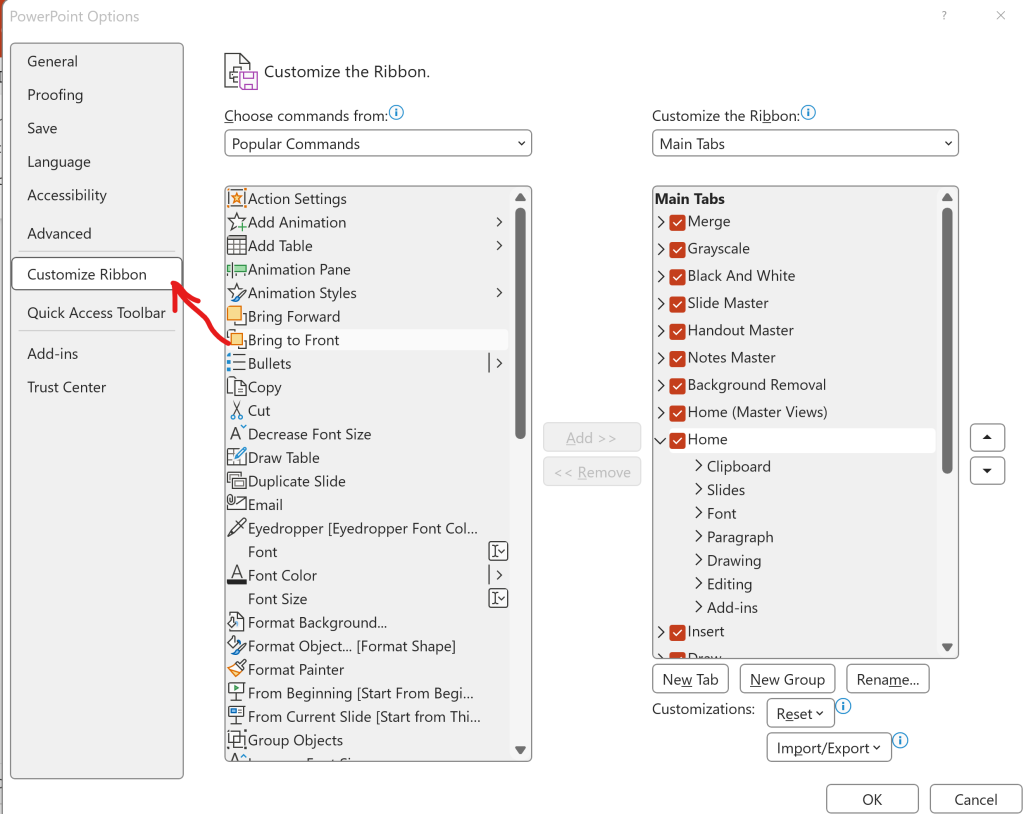
- Locate the Main Tabs List: On the right-hand side of the Customize Ribbon panel, you’ll see a list labeled “Customize the Ribbon:” along with a dropdown to select “Main Tabs.”
- Find and Check “Developer”: Scroll down the list of main tabs. Locate the checkbox next to “Developer.” By default, it will likely be unchecked. Click the checkbox to add a checkmark.
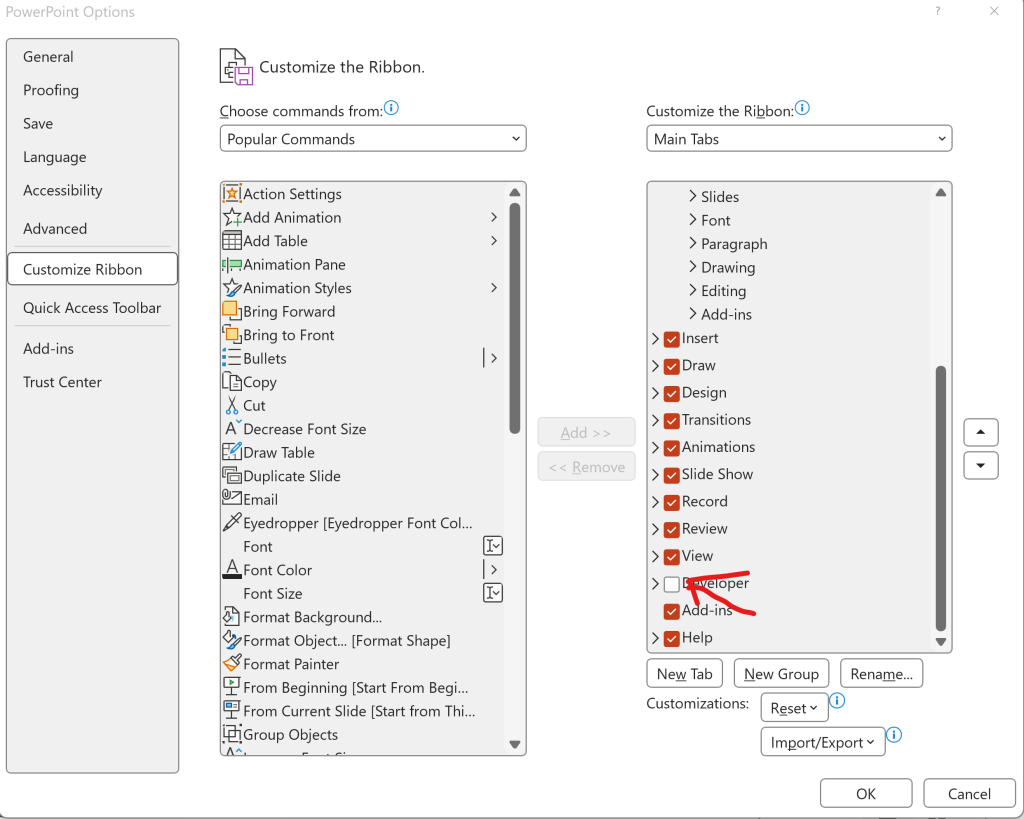
- Click “OK”: Click the “OK” button at the bottom of the PowerPoint Options dialog box to save your changes and close the dialog.
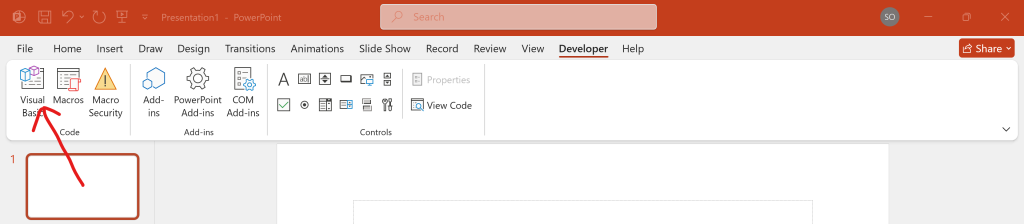
- The Developer Tab Appears: The “Developer” tab should now be visible in your PowerPoint ribbon, typically located towards the right side of the tabs.

Access VBA Editor
- Go to the Developer tab.
- Click Visual Basic to open the VBA editor.
Adding the ChatGPT VBA Code
Insert a New Module
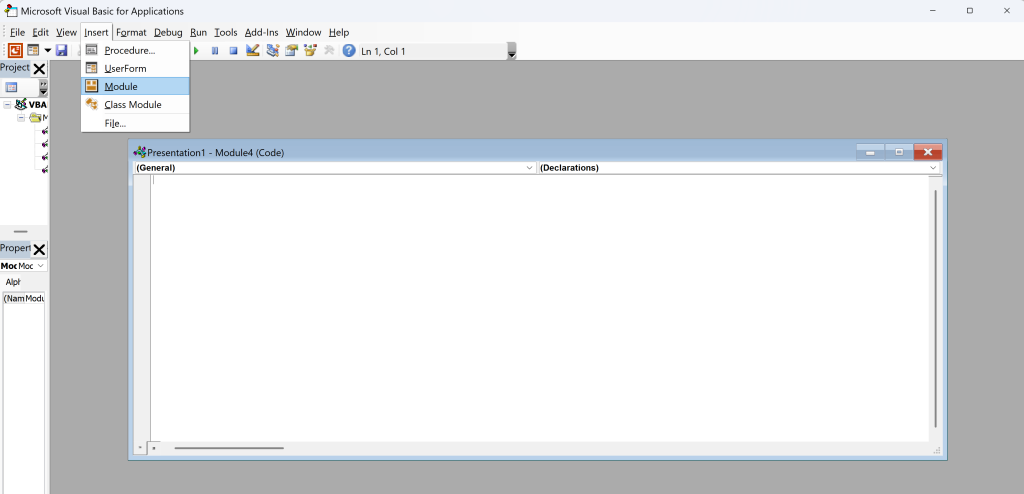
- In the VBA editor, click Insert > Module.
- A blank module will appear where you can paste the VBA code.
Copy the VBA Code from ChatGPT
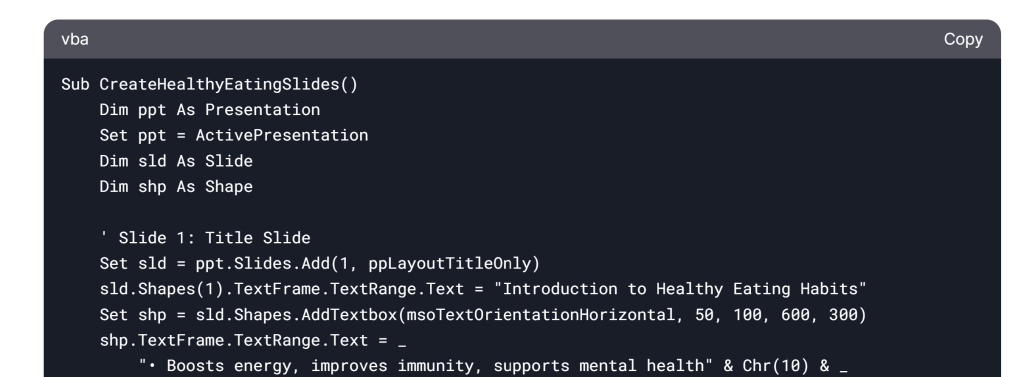
Paste the VBA Code on the blank module.
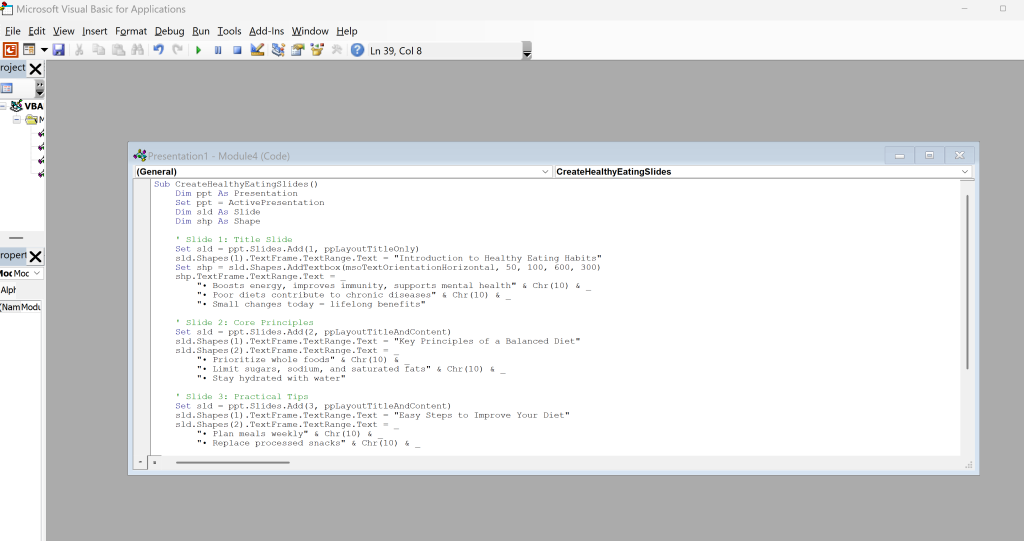
Run the Code
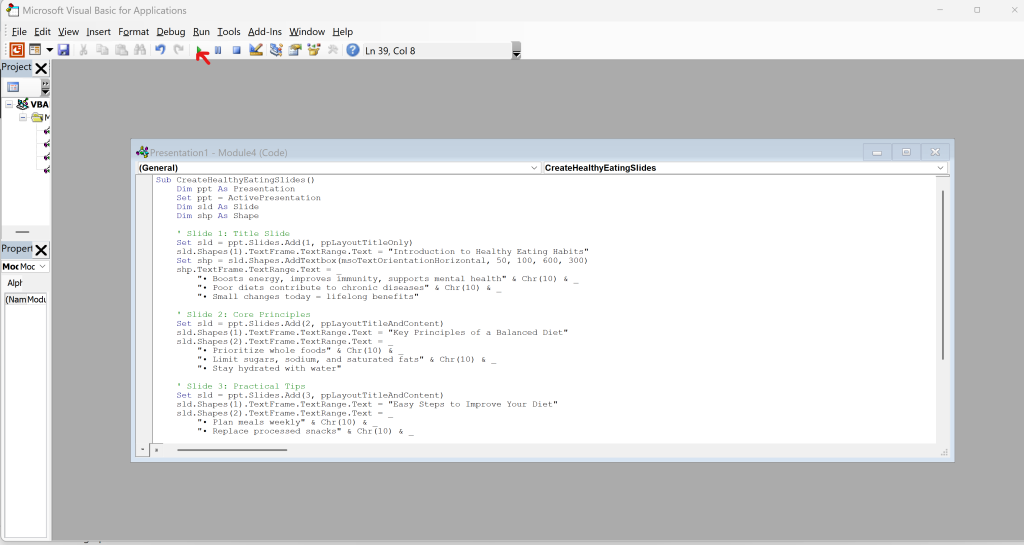
Using Designer Features for Aesthetic Appeal
Creating an engaging PowerPoint presentation also requires attention to design. Microsoft PowerPoint offers numerous tools to enhance visual elements and ensure the presentation is aesthetically pleasing.
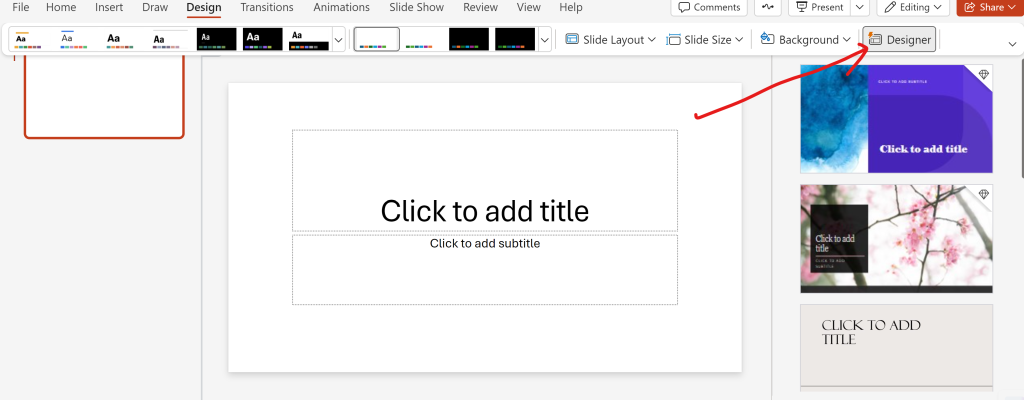
What is the Designer Tool?
Designer (called Design Ideas in some apps) is an AI-powered feature in Office 365 that:
- Generates professional layouts, formatting, and design suggestions.
- Works in PowerPoint, Word, and Office Online.
- Saves time by automating design choices for slides, images, charts, and documents.
How to Enable Designer
- In PowerPoint or Word:
- Go to File > Options > General.
- Check the box for “Enable Design Ideas” (PowerPoint) or “Automatically show design suggestions” (Word).
- Click OK.
Using Designer in PowerPoint
Step 1: Create a New Slide
- Add a slide with content (e.g., text, images, charts).
- The Design Ideas pane will automatically open on the right.
Step 2: Choose a Design Suggestion
- Scroll through layout ideas, color schemes, and image arrangements.
- Click a design to apply it instantly.
Step 3: Refine Your Slide
- For images: Designer suggests cropping, filters, and collage layouts.
- For charts: Offers styling options to improve readability.
- For text: Recommends modern fonts and spacing adjustments.
Pro Tip: Use high-quality images for better design suggestions.
Using Designer in Word
Step 1: Add Content
- Insert elements like headings, images, or tables.
- The Designer pane (lightbulb icon) will appear on the right.
Step 2: Apply Formatting Ideas
- Cover Pages: Choose professional templates for reports.
- Headers/Footers: Get styled suggestions.
- Lists and Quotes: Apply polished formatting to text blocks.
Step 3: Customize
- Modify colors, fonts, or spacing after applying a design.
Tips for Maximizing Designer
- Keep Content Clear: Designer works best with concise text and visuals.
- Experiment: Reject a suggestion? Designer will offer new options.
- Reset Designs: Right-click a slide or element and select “Reset Slide” to undo changes.
- Use Templates: Pair Designer with built-in Office templates for faster workflows.
Troubleshooting Designer
- Not Showing Up?
- Ensure you’re subscribed to Office 365 (Designer is not available in offline/standalone versions).
- Check your internet connection (Designer requires cloud processing).
- Update Office via File > Account > Update Options.
- Limited Suggestions?
- Add more content (e.g., bullet points, images) to trigger design ideas.
Why Use Designer?
- Saves Time: No need to manually format slides or documents.
- Enhances Visual Appeal: Professional designs with minimal effort.
- Adapts to Your Content: Suggestions evolve as you add/remove elements.
Resources to Learn More About VBA and PowerPoint Designer
Learning VBA for PowerPoint
- Microsoft’s Official Documentation
Microsoft provides comprehensive guides for VBA, including tutorials and reference material.- Microsoft VBA Documentation
- VBA Tutorials on YouTube
YouTube hosts various video tutorials for beginners and advanced users:- Excel Macro Mastery’s Channel (Covers VBA in-depth, including PowerPoint integration)
- Wise Owl Tutorials
- VBA Developer Communities
Engaging with communities can help you troubleshoot errors and learn new techniques.- Stack Overflow VBA Section
- Reddit VBA Subreddit
- Books on VBA Programming
- Excel VBA Programming For Dummies by Michael Alexander and John Walkenbach: A beginner-friendly book that covers VBA fundamentals.
- Mastering VBA for Microsoft Office 365 by Richard Mansfield: Includes specific tips for PowerPoint.
Improving PowerPoint Design Skills
- Microsoft Design Support
Learn how to use PowerPoint’s built-in tools for creating professional designs. - Canva Design School
Canva offers free tutorials on design principles, which are applicable to PowerPoint. - Presentation-Guru Articles
A website dedicated to improving presentation skills and slide design. - Books on Presentation Design
- Presentation Zen by Garr Reynolds: Offers insights into minimalist and impactful slide design.
- Slide:ology by Nancy Duarte: Focuses on creating visually engaging presentations.
Interactive Learning Platforms
- LinkedIn Learning
LinkedIn Learning has courses on both VBA and PowerPoint design:- VBA for Non-Programmers
- PowerPoint: Designing Better Slides
- Udemy Courses
Udemy hosts affordable courses for beginners and experts alike. Popular options include: - Coursera
Offers courses from top universities on related topics:
Free Templates and Tools
- Slides Carnival
Provides free, editable PowerPoint templates with professional designs. - PPT Template Websites
Explore free and premium PowerPoint templates:
Forums and Blogs for Inspiration and Support
- PowerPoint Ninja
A blog featuring tips and tricks for mastering PowerPoint.- PowerPoint Ninja
- OfficeTips Forum
A community forum dedicated to discussing Microsoft Office applications.- OfficeTips Forum
- Design Shack
Offers articles on design trends and presentation aesthetics.
Deadline Approaching?
We’re Already Working Professional presentation support, instantaneously
FAQs
What Are the Four Steps for Creating a PowerPoint Presentation?
Creating a PowerPoint presentation involves four key steps:
Step 1: Plan Your Content
Define the purpose of your presentation (e.g., inform, persuade, educate).
Outline the key points and structure your content logically.
Gather supporting materials like images, charts, and data.
Step 2: Create the Slides
Open PowerPoint and choose a template or start with a blank slide.
Add slides for each section of your presentation (e.g., title slide, introduction, main points, conclusion).
Insert text, images, charts, and other visuals to support your message.
Step 3: Design and Format
Use consistent fonts, colors, and styles for a professional look.
Apply transitions and animations sparingly to enhance engagement.
Use the Designer tool (in Office 365) for layout suggestions.
Step 4: Review and Practice
Proofread for spelling and grammar errors.
Check slide flow and timing.
Practice delivering your presentation to ensure smooth transitions and clarity.
How Do You Create a PowerPoint Presentation from a Document?
You can convert a Word document or other text-based file into a PowerPoint presentation:
Method 1: Manual Conversion
Open PowerPoint and create a new presentation.
Copy sections of text from your document and paste them into slides.
Organize the content into bullet points, headings, and visuals.
Method 2: Use PowerPoint’s Import Feature
Open PowerPoint and go to File > Open.
Select your document (e.g., Word file) and click Insert.
PowerPoint will automatically create slides based on headings and paragraphs.
Method 3: Use Online Tools
Tools like Microsoft Office Online or third-party converters (e.g., Zamzar) can transform documents into PowerPoint slides.
What Are the 5 Rules of PowerPoint?
Follow these rules to create effective and engaging presentations:
Rule 1: Keep It Simple
Avoid clutter: Use minimal text and visuals per slide.
Stick to one main idea per slide.
Rule 2: Use Visuals Wisely
Include high-quality images, charts, and diagrams to support your message.
Avoid overloading slides with unnecessary graphics.
Rule 3: Be Consistent
Use the same font, color scheme, and layout throughout the presentation.
Maintain a professional and cohesive look.
Rule 4: Limit Text
Use bullet points and short phrases instead of long paragraphs.
Aim for no more than 6 lines of text per slide.
Rule 5: Engage Your Audience
Use animations and transitions sparingly to avoid distractions.
Include interactive elements like polls or questions to keep the audience involved.
How to Start PowerPoint Step-by-Step
Here’s how to launch and begin a PowerPoint presentation:
Step 1: Open PowerPoint
On Windows: Click the Start Menu, search for PowerPoint, and open the app.
On Mac: Open Finder, go to Applications, and click Microsoft PowerPoint.
Step 2: Choose a Template
Select a pre-designed template from the New tab or start with a blank presentation.
Step 3: Add Slides
Click New Slide in the Home tab to add slides.
Choose a layout (e.g., title slide, content slide) for each new slide.
Step 4: Insert Content
Add text by clicking on text boxes and typing.
Insert images, charts, or videos using the Insert tab.
Step 5: Save Your Presentation
Go to File > Save As and choose a location to save your file.
Use a descriptive name for easy identification.
Step 6: Present Your Slides
Click the Slide Show tab and select From Beginning to start your presentation.
Use arrow keys or a clicker to navigate through slides.